All-in-one AI image, video and audio creation.
unlucid ai
Back to blog

How to Animate a Reference Image with AI

Prepare a still image for image-to-video generation, write a motion prompt and check the final clip for changes to the subject and framing.
Nov 14, 2026unlucid ai
How to Animate a Reference Image with AI

Match the still to the intended frame

Start with a clear subject and enough room around it for the movement you want. Use a vertical composition for a vertical clip. If the source is tightly cropped, AI Image Expander can extend the canvas before you animate it.

Describe motion relative to the source

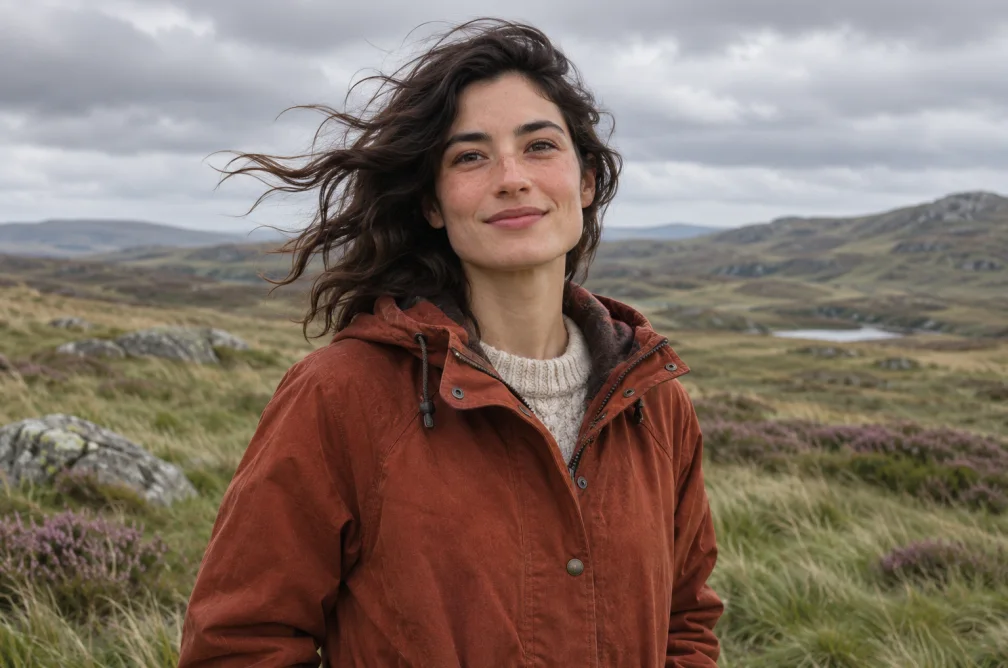
Write the motion that should be added to the image. For a portrait, try “Move the camera slowly toward the subject while a light breeze moves the jacket. Keep the face and lighting consistent.” For a product, ask for a camera orbit around a stationary object and specify which side faces the camera first.

Review the whole clip

Check the source and the finish side by side. Faces, hands, labels and fine edges can change across frames. If the first pass drifts, simplify the motion and keep the framing steady. The model determines which clip lengths and resolutions you can select.

Upload a still in the Image to Video Generator. For a product shot with packaging, use the Product Video Generator.

Review the subject at multiple points in the clip

Pause at the beginning, middle and end. Compare the subject’s outline and identity with the still. If a label or face changes during the move, try a simpler motion from the same reference.

When this helps

If a portrait only needs a little motion, ask for wind in fabric or a short camera move before attempting a full change in pose.

Examples

Person in a rust jacket with windblown hair in open moorland
Wind offers a simple motion cue without requiring a large turn.

Example

For a jacket portrait, test a shallow push-in before asking the subject to turn and expose a side the photo does not show.

Settings & limits

Source
A clear JPG, PNG or WebP still
Framing
Match the crop to the intended delivery
Review
First, middle and last frame

Questions about How to Animate a Reference Image with AI

What makes a still ready for animation?

Use a sharp frame with the important details visible and room in the direction of motion.

Which frames should I compare?

Check the beginning, middle and end for changes to the face, outline, hands or lettering.

When should I expand my source image first?

Expand or recrop the still if the intended output would clip important detail or leave no room for motion.

How can I reduce drift during a moving shot?

Start from a well-lit still with the whole important area in view. Try a short movement that does not reveal unseen parts of the subject. Check the same feature at the start, midpoint and end.