Portrait with subtle movement
Ask for wind in the jacket or a slow push-in. Keep the face at a similar angle so the model has a reference throughout the shot.
Animate an uploaded image with a movement prompt. Choose a video model, clip length and output ratio for the source image.
 Example
Your result will appear here.
See examplesUpload a source image, then describe what moves and what stays fixed. Choose the output ratio before rendering and review faces, edges and text in the moving result.
Ask for wind in the jacket or a slow push-in. Keep the face at a similar angle so the model has a reference throughout the shot.
Move the camera and keep the product still. If the back is unseen in the reference, keep the orbit shallow.
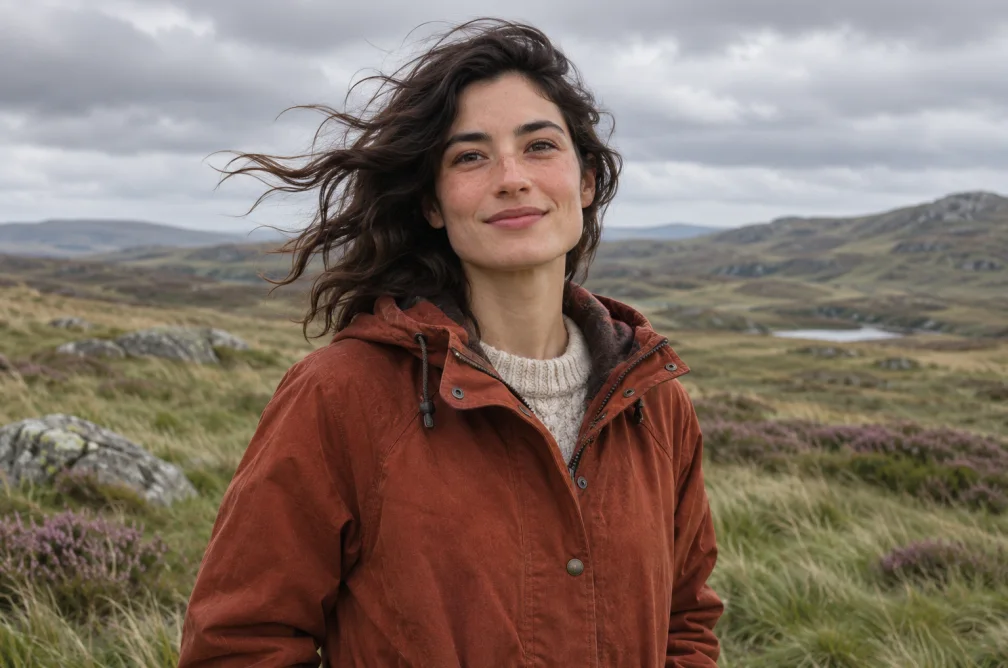

Push the camera slowly toward the person in the rust jacket. Keep the eyes in focus and the light consistent.
| Source | Motion to try | Review |
|---|---|---|
| Portrait | Keep the camera fixed while a light breeze moves the jacket. | Eyes and hairline stay consistent from the first frame to the last. |
| Product still | Move the camera toward the product while it remains still. | The item keeps its shape and the label stays readable. |
Use a well-lit JPG, PNG or WebP up to 10 MB. Make the important detail visible and leave enough space to animate in the chosen direction.
A wide image can lose edge content in a vertical output. Preview the chosen ratio or prepare a vertical still before generating when edge content matters.
Reduce the amount of movement, avoid large rotations and explicitly ask to keep the source angle or pose. Compare the midpoint and final frame again.
Each submission returns one clip. Use the same source with separate prompts when you need alternate shots, and check continuity across the results.
Choose a source where the important detail is already large and sharp. Ask for a small motion such as a slow push-in, then inspect the beginning, middle and final frame. Strong rotations can expose parts of the subject the model has to reconstruct.