AI Image Expander
Extend an image beyond its original frame. Choose a new aspect ratio and guide the scenery or background the tool should fill.
Results
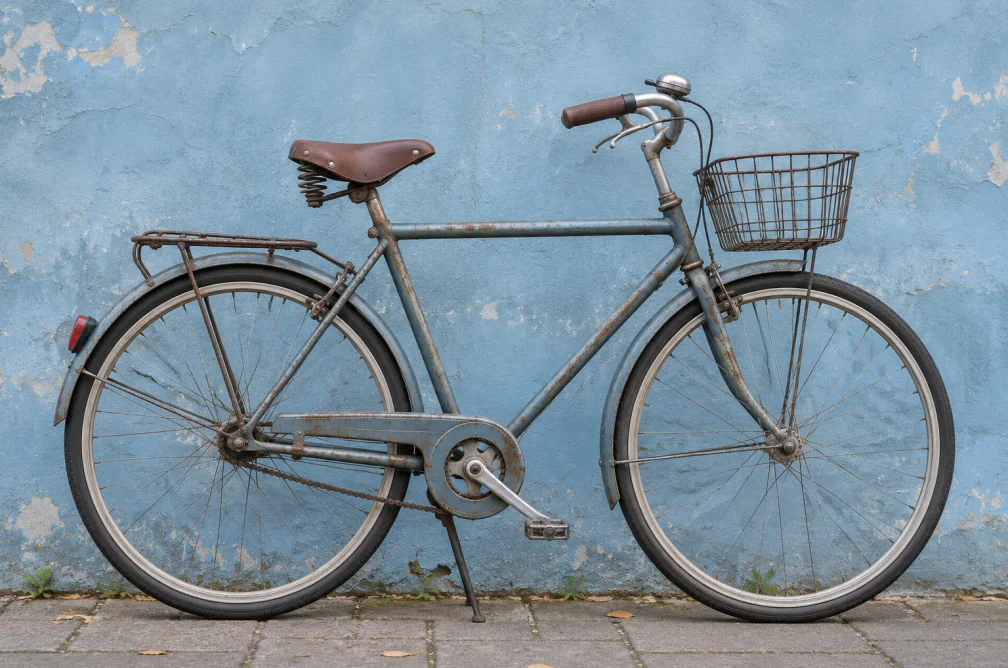 Example
Your result will appear here.
See examplesExpand an image to a different aspect ratio
Upload an image and choose a square, wide or vertical canvas. Describe the background beyond the current frame so the model can extend the scene naturally.
When this helps
For a banner from a square source, extend the wall and ground line while leaving room on one side for the headline.
Examples
Example
Turn a square portrait into a wide banner by extending the brick wall and evening shadows on both sides.
How to use it
- Upload the source and choose square, wide or vertical.
- Describe what should continue beyond the frame.
- Check straight lines and repeated texture where the new area meets the source.
Settings & limits
- Source photo
- JPG, PNG or WebP, up to 10 MB
- Canvas ratios
- 1:1, 9:16 or 16:9
- Output
- Image with an extended frame
Questions about AI Image Expander
Which aspect ratios are available?
Choose 1:1, 9:16 or 16:9. Set the ratio according to the destination rather than the dimensions of the current image.
Can expanding change the subject?
The result can change source details. Compare the subject and any important edges before using the new canvas.
What should I inspect near the new edges?
Follow horizon lines, floorboards and blocks of repeated texture through the boundary.
What should continue beyond the edge?
Name features that reach the edge, such as floorboards or a horizon, and describe how they should continue. Inspect repeated textures and straight edges at the boundary between the source and the extended area.