 unlucid ai
unlucid ai
Make the shot you need for your edit
Generate images and short videos from prompts or reference photos. Create narration, music and sound effects for the same edit.
Opening workspace…
Nano Banana Seedream GPT Veo Kling Seedance Wan Grok
Video Examples and Prompts
Preview a scene and open its prompt in the video generator to adapt the subject, movement or setting.
Start with the media you have
Text to Video
Write the subject, action and camera move for a short scene. Use it to try an opening shot or fill a gap in an edit.
Image to Video
Animate a still and describe what should move, from an expression or a shadow to the camera itself.
AI Image Generator
Turn a visual brief into concept art, a thumbnail or a starting frame for a video.
Image to Image
Use an existing image as a reference to try a different crop, backdrop or lighting setup.
AI Voiceover
Turn a written script into narration for an explainer, product demo or short-form video.
Add Audio to Video
Combine a video and an audio track, adjust the mix and export from your browser.
From a rough idea to an editable clip
Choose your starting point
Open Image or Video in the generator, or choose an audio tool for narration or music.
Describe what you want
Write the scene, include a script for narration, or attach a reference in a tool that supports it.
Set the model and format
Choose the settings available for the model, review the credit quote and submit.
Review and download
Preview the result and download it from My Creations when the generation is done.
How creators use unlucid ai
Find a starting point for the kind of work you make.
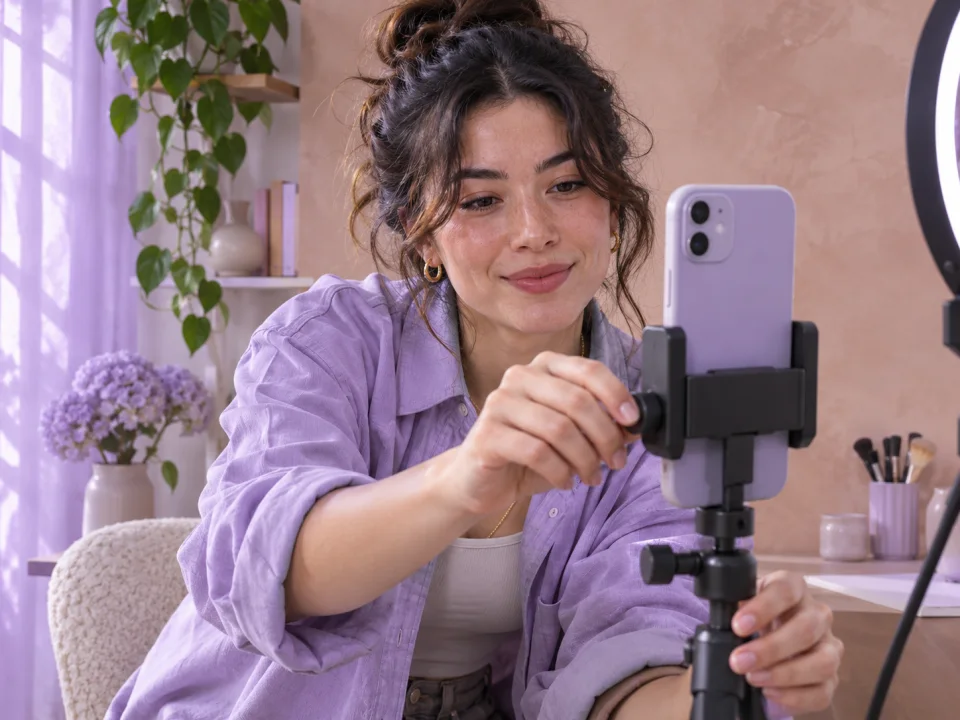
Give a still photo a hook worth watching
Start with a photo from your shoot and turn it into a vertical opening for Reels, Shorts or TikTok. Prompt a push-in, a pan or a small gesture, then choose 9:16 on a model that supports it.
Animate a photo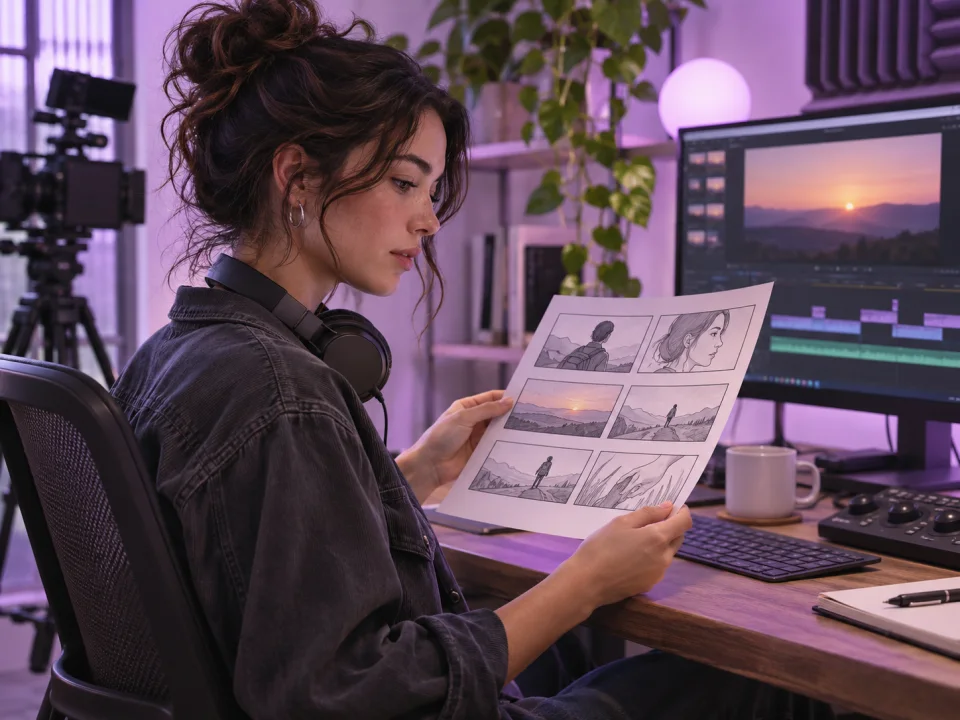
Make the cutaway you’re missing
Turn a line in your script into an establishing shot, a close-up or a transition. Describe the framing and camera movement, then pick a clip length and ratio that fit your edit.
Create a clip from text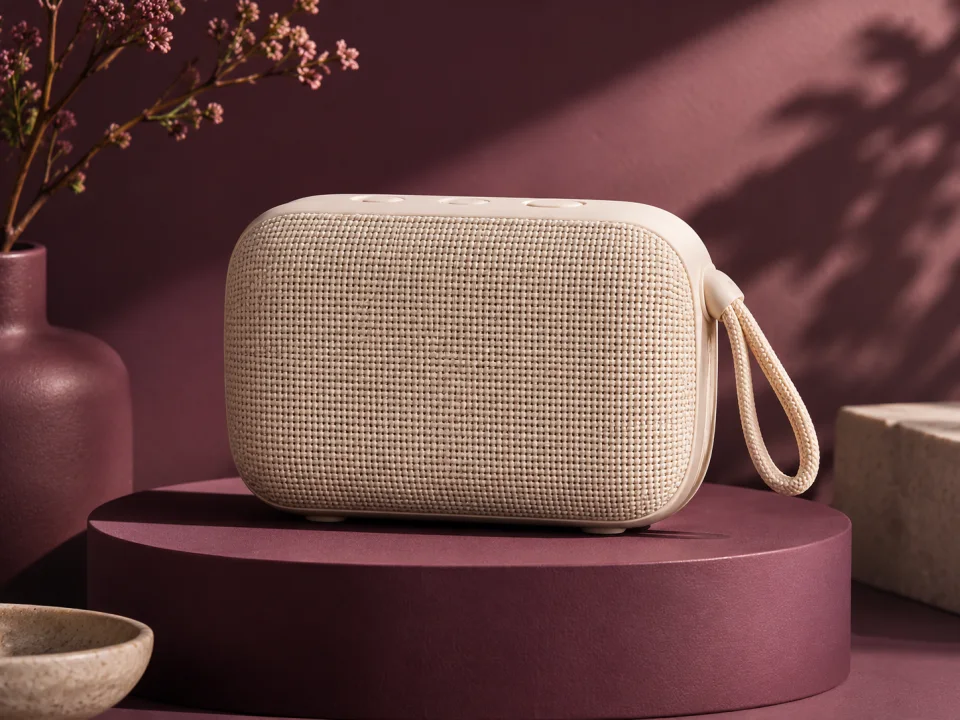
Try a new campaign setting with the photo you have
Use an existing product photo as a reference. Describe the backdrop, angle and lighting for a launch or seasonal campaign, then review the result against the original before publishing.
Create a product image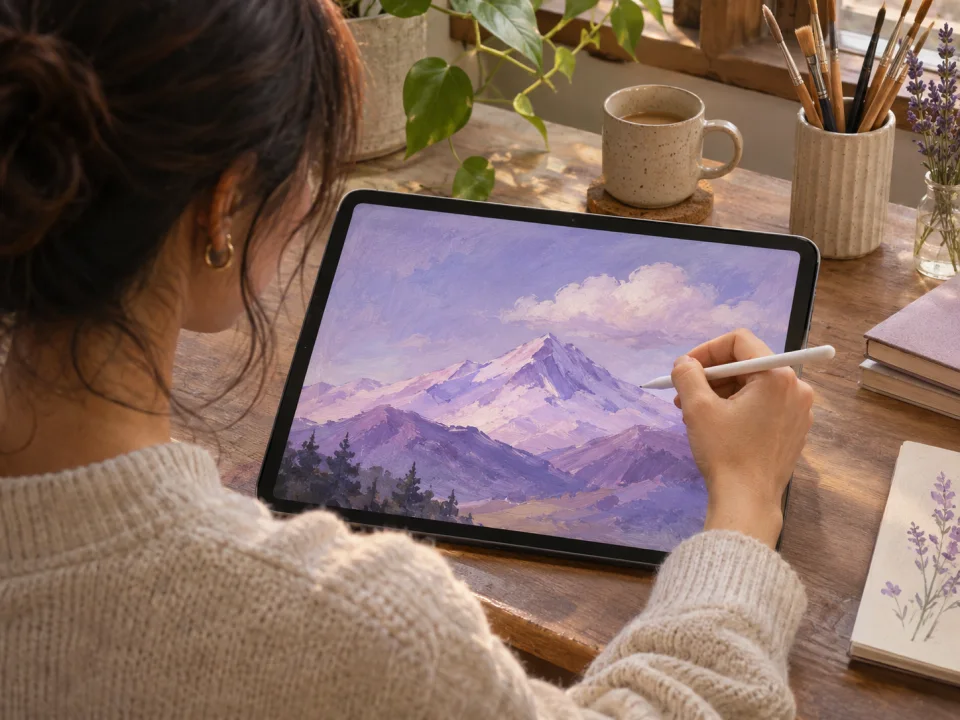
See how a finished illustration moves
Use your artwork as the source frame and direct one small change, such as drifting clouds or a slow camera move. Compare the clip with the still to see where the composition holds up in motion.
Animate your artworkWhy create with unlucid ai?
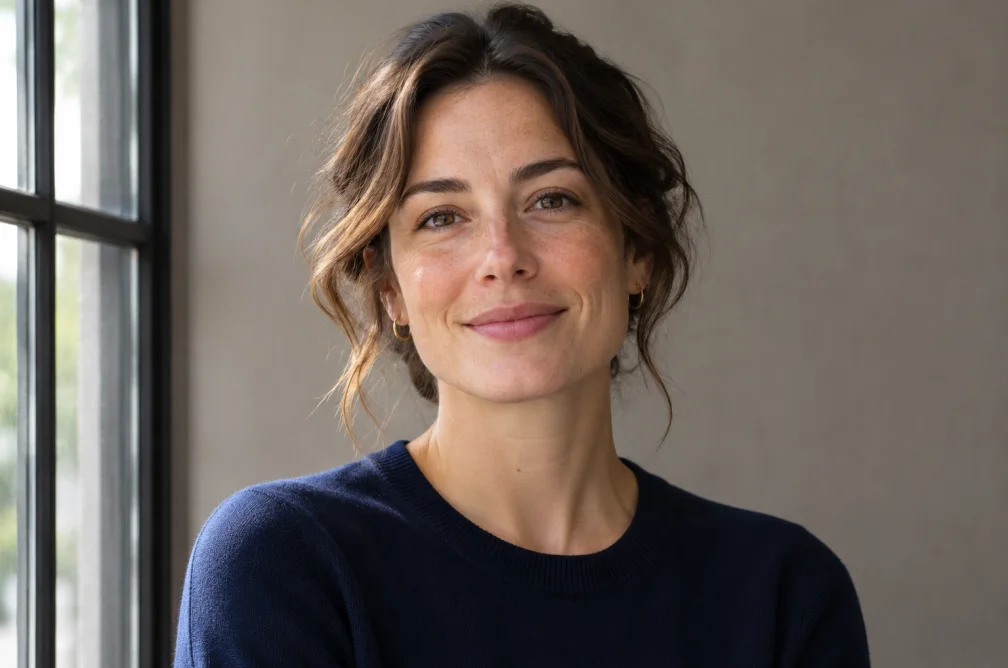
Start from a reference photo to carry its subject, framing or palette into the next shot. Describe the movement or visual change you want the model to focus on.
Switch models in the generator and check the ratio, duration and resolution each one offers. Set those options to fit a vertical post, a widescreen cut or a still for your campaign.
The generator updates its credit quote when you change the model or settings. Check the cost of a short first pass before committing to a longer or higher-resolution version.
Frequently asked questions about unlucid ai
Is unlucid ai free to try?
New accounts receive 10 credits. Each model and setting has its own cost, so check the quote under the prompt before submitting. Adding audio to a video in your browser costs zero credits.
Should I start with text or a reference image?
Use Text to Video when you want the model to invent the scene from your description. Use Image to Video when you already have a frame and want to direct what happens next.
How do I choose a model?
Start with the format your project needs. Check the model’s supported ratios, clip lengths, resolutions and reference inputs in the generator. For a vertical Short, look for 9:16 before deciding on the duration.
How are generation credits calculated?
The quote depends on the model and selected settings, including duration and resolution where applicable. A failed generation returns the credits reserved for that task. See the credits and refunds policy for details.
Can I make narration or music for a video?
Yes. Turn a script into narration with AI Voiceover, or describe a track with AI Music. Download the audio, then attach it with Add Audio to Video.
Where do I find my finished files?
Sign in and open My Creations to review your generated images, videos and audio. If you used Add Audio to Video, download the edited file directly from the editor.
What should I check before publishing a result?
Check that you can use the reference media, any recognizable likenesses and the resulting file in your intended project. Review the Terms of Service and Acceptable Use Policy before you publish.
Need help with your account or a generation? Email support@unlucidai.net.
Start your next project with unlucid ai
Open the video generator and describe the first shot you want to make.