Social teaser
Set a vertical ratio first and leave room around the subject. A five-second action gives the edit a clean opening and ending.
Create short AI videos from a prompt or reference image. Compare Veo, Seedance, Kling, Wan and Grok, then review credits before submitting.
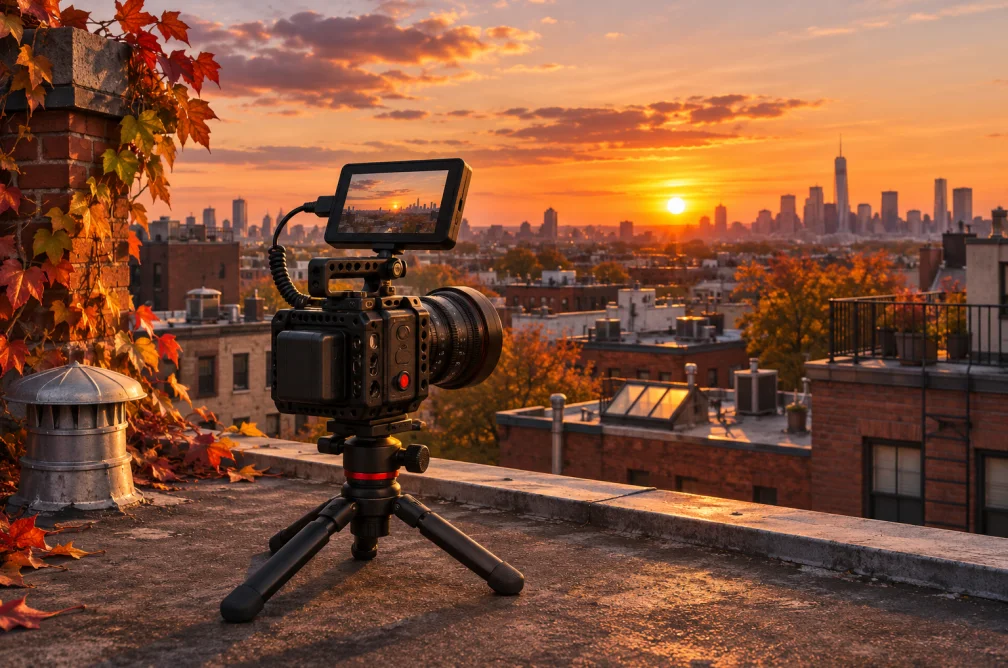 Example
Your result will appear here.
See examplesStart with a prompt for a new scene or add an image to guide the first frame. Model choice controls the available ratios, resolutions and clip lengths. Compare credits at the same settings before you render.
Set a vertical ratio first and leave room around the subject. A five-second action gives the edit a clean opening and ending.
Use a photo when the product has an exact outline. Start with a short push-in and check branding before trying an orbit.
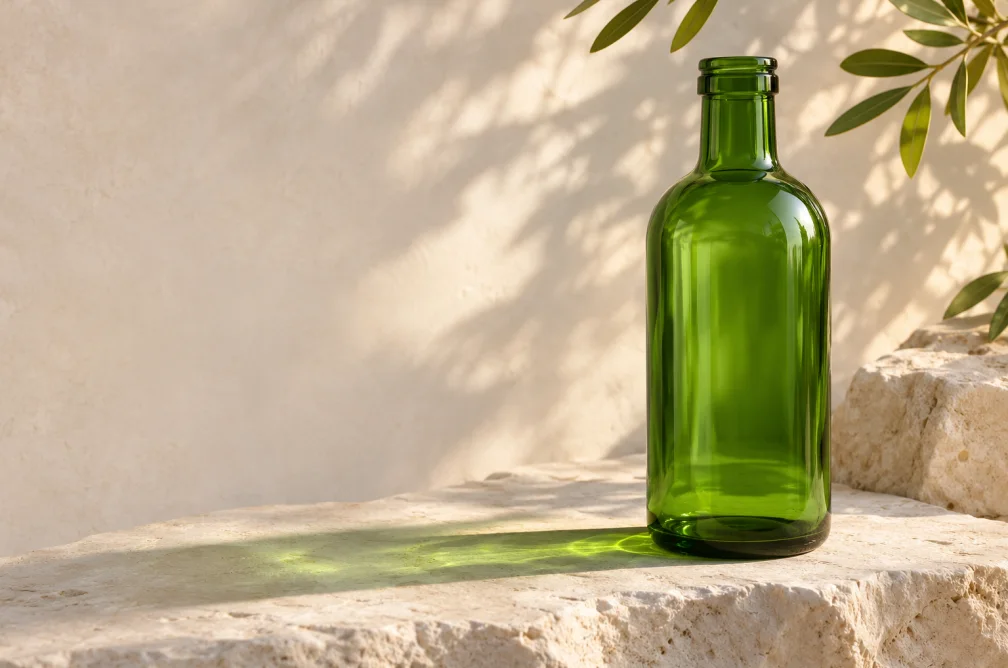
For a product shot, ask the camera to move closer to a bottle on a stone plinth. Keep the bottle still and leave space above it throughout the shot.
| Model | Clip length | Resolution | Ratios | Default credits |
|---|---|---|---|---|
| Veo 3.1 Fast | 8 sec | 720p, 1080p | 16:9, 9:16 | 35 |
| Kling 2.6 | 5, 10 sec | 720p, 1080p | 16:9, 9:16, 1:1 | 55 |
| Seedance 2.5 | 5, 8, 10, 12, 15, 30 sec | 480p, 720p, 1080p | 16:9, 9:16, 1:1, 4:3, 3:4 | 100 |
| Wan 2.6 | 5, 10, 15 sec | 720p, 1080p | 16:9, 9:16, 1:1 | 55 |
| Grok Imagine 1.5 | 6, 10, 15 sec | 480p, 720p, 1080p | 16:9, 9:16, 1:1 | 80 |
Default credits are for one request with the model’s default settings. Check your workspace quote after changing the output settings.
Start with the required output. For a fixed eight-second clip, Veo 3.1 Fast has an eight-second option. For a wider choice of lengths, compare Seedance 2.5, Wan and the other options in the table.
Yes. Upload a JPG, PNG or WebP reference and describe the motion it needs. Select Image to Video if you want a workflow built around the reference.
The quote depends on the model and settings such as length and resolution. Change one setting at a time if you are comparing the cost of alternative takes.
Open the finished result in the workspace or find the task in My Creations. Check the clip before downloading, especially if it contains text or branding.
Keep the prompt and reference fixed. Use the same resolution, aspect ratio and duration where the models overlap, then compare the parts that matter, such as the same label or camera move.