AI Clip Maker
Extract one highlight from uploaded footage. Describe what to prioritize and choose an approximate clip length and aspect ratio.
Results
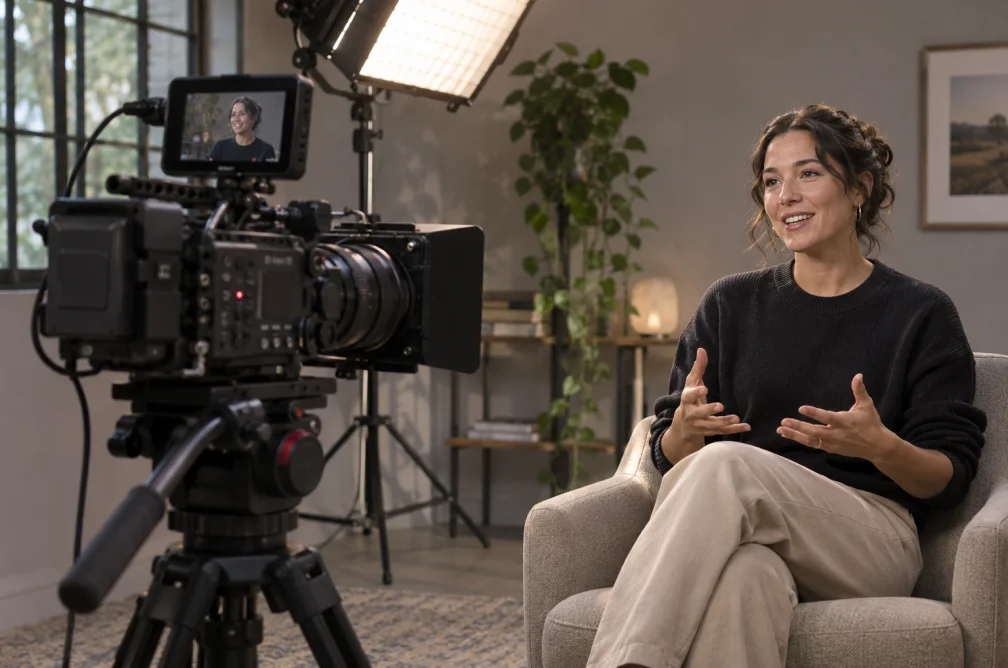 Example
Your result will appear here.
See examplesTell the AI Clip Maker what to keep
Name one takeaway, answer or scene. The editor picks a segment and returns one clip, so review the opening and ending before posting.
When this helps
For a podcast teaser, pick an answer that introduces its own subject and finishes a thought without the full introduction.
Examples
Example
Find the first clear answer about product setup and export a roughly 30-second highlight.
How to use it
- Upload a source containing the complete answer or scene.
- Name the moment to prioritize and choose a target length and ratio.
- Watch the start and end to confirm the edit makes sense on its own.
Settings & limits
- Source
- MP4, MOV or WebM, up to 48 MB
- Target length
- 15, 30, 60, 90 or 120 seconds, approximate
- Output
- One highlight clip
Questions about AI Clip Maker
How many clips does one job return?
One highlight. Use separate requests with distinct cues when you need several excerpts.
Is the requested clip length exact?
The length is a target. The tool chooses a segment from the source, so review the cut before publishing.
How do I point to a particular answer?
Name the topic or visible event and include enough source footage around it to provide context.
What should I review before sharing a suggested clip?
Check that the opening establishes the subject and that the clip ends on a complete thought. Make sure captions or important objects stay visible in the chosen ratio.