AI Video Summary Generator
Summarize the visible events in a video clip in chronological order. Upload a clip up to two minutes and copy the written recap.
Results
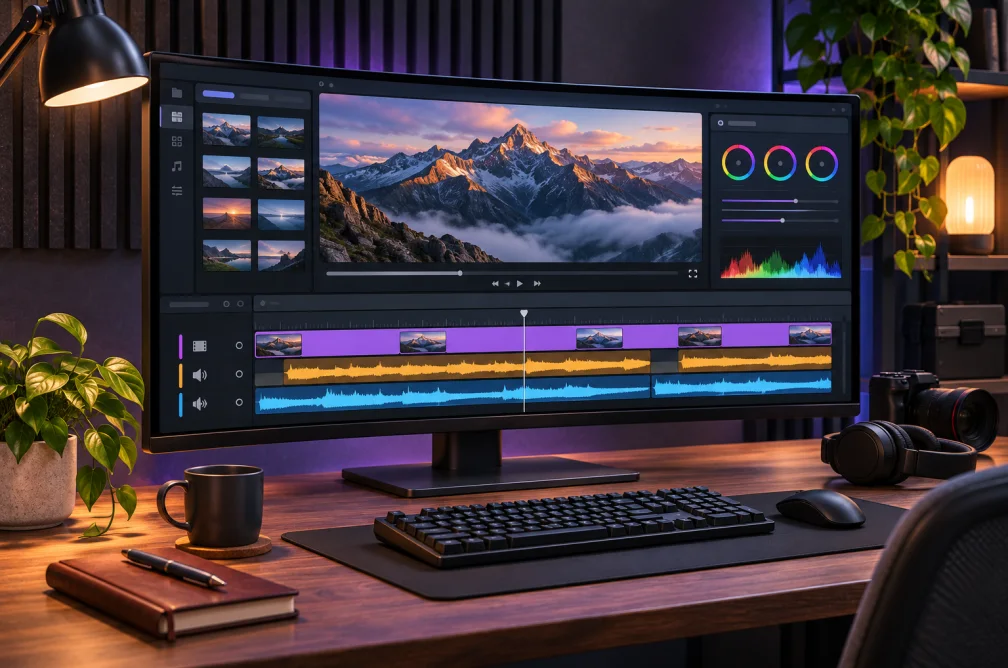 Example
Your result will appear here.
See examplesSummarize the order of events in a clip
Upload the part of the clip you want covered. Ask for the most important visual actions and compare the recap with the footage before sharing it.
When this helps
For a shared edit brief, a chronological recap should tell a colleague what changes between the opening setup and the last visible action.
Examples
Example summary
The clip opens on a city skyline at sunset. The view widens to reveal a camera in the foreground and more of the rooftop.
How to use it
- Upload the portion the reader needs to understand.
- Ask for the starting scene, main change and ending.
- Compare the summary with the original before sharing it.
Settings & limits
- Source video
- MP4, MOV or WebM, up to 2 min and 48 MB
- Focus
- Key visible events in chronological order
- Output
- Short written recap
Questions about AI Video Summary Generator
Does the summary include the dialogue?
The tool is designed around visible events. Use a transcription tool when you need exact speech.
How do I get a chronological recap?
Ask for the opening, each major visible change and the final shot in order.
Can I summarize a full webinar?
One upload is limited to two minutes and 48 MB. Use a shorter excerpt when you need a focused recap.
Should I use a video summary or a transcript?
Use the summary to capture what happens on screen, such as when a second person enters or the camera pulls back. A transcript is the better choice when you need the exact words people say.