Catalog shot
Use a clean side or front view so the label and shape can be retained. Check pale edges against white and verify the background to the listing specification.
Replace a busy image background with a clean white backdrop. Upload a subject photo and review the AI result before using it.
 Example
Your result will appear here.
See examplesThe tool uses your photo as a reference and prompts the model for a clean white backdrop. The result is a new image with a white background. Inspect hair, glass and fine edges for changes.
Use a clean side or front view so the label and shape can be retained. Check pale edges against white and verify the background to the listing specification.
Choose a source with contrasting edges. Zoom in on openings, reflections and fine strands when reviewing the new image.
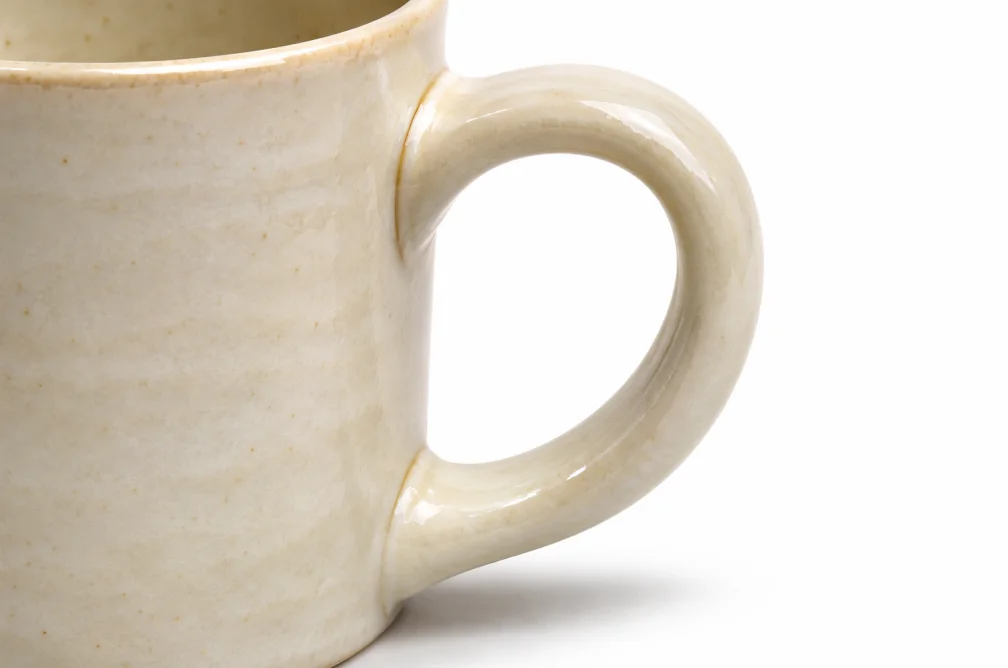
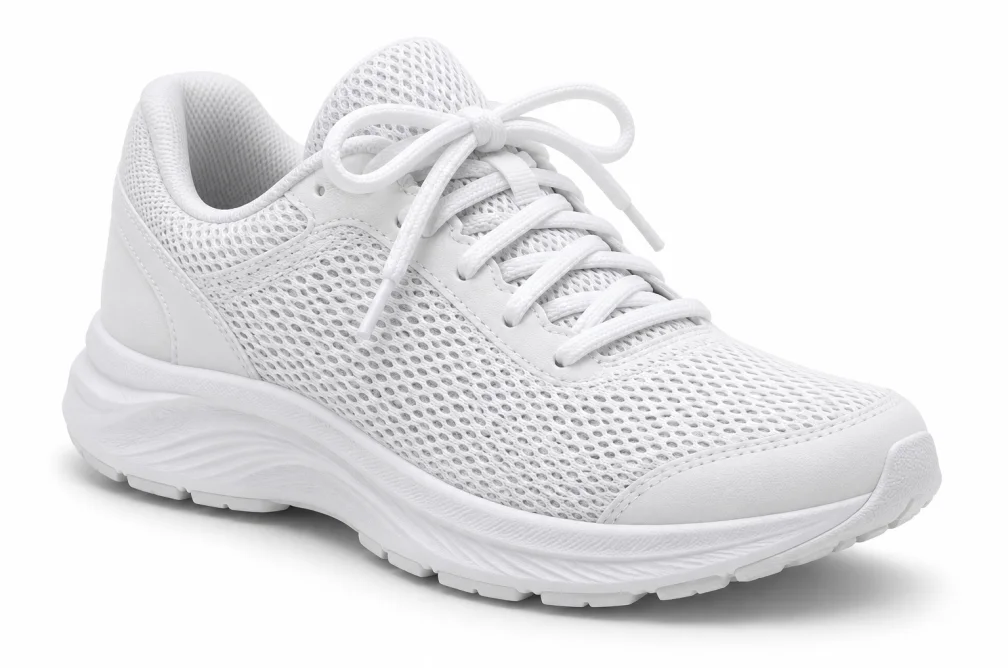
Use a shoe photo with a clear outline and ask the model to keep the laces, sole and color while cleaning up the background.
| Subject | Look closely at | What to do next |
|---|---|---|
| Shoes or lace | Openings between laces and white mesh | Check that details stay visible against white. |
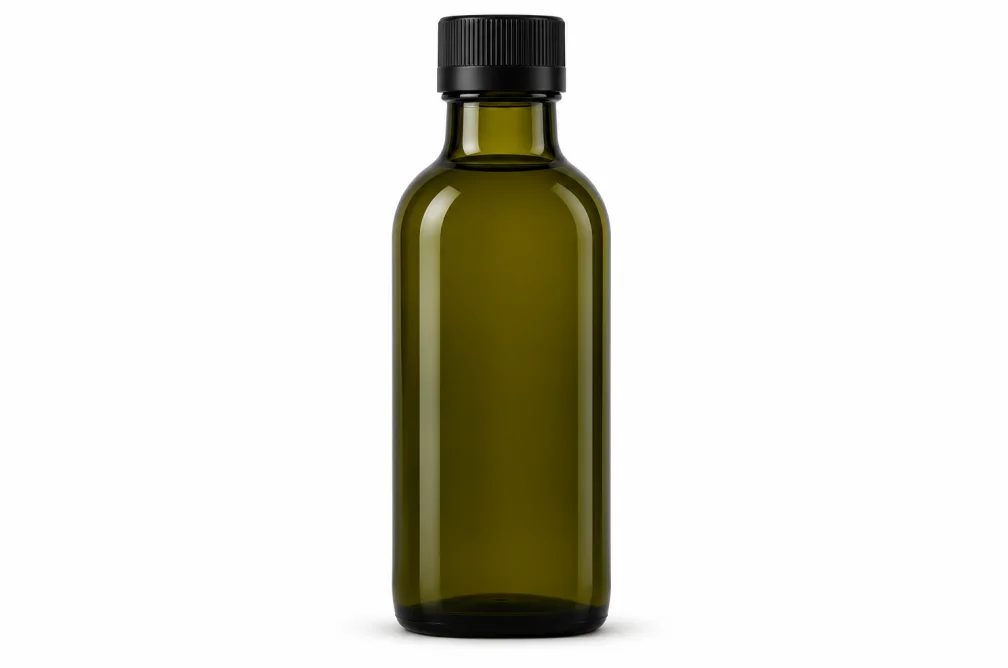
| Glass or glossy packaging | Reflections, label and rim | Compare color and outline with the original before listing. |
The default result uses a white backdrop. If you need a transparent asset for compositing, prepare an alpha mask in a dedicated image editor.
You can request a soft contact shadow in the instructions. Check whether the new shadow follows the light direction and anchors the subject.
Review the silhouette, branding and required background color first. The result is a regenerated image and can change details from the source.
Look at the same area of the source and result at full size. Focus on gaps between fine strands and reflections around the glass rim.
Glass, white objects on pale backdrops and flyaway hair all have edges that can blend into the background. Start from a sharper source with a more visible outline if you have one.