Remove Object from Image
Describe an object to remove from an uploaded photo. The AI regenerates the scene around it using the source image as a reference.
Results
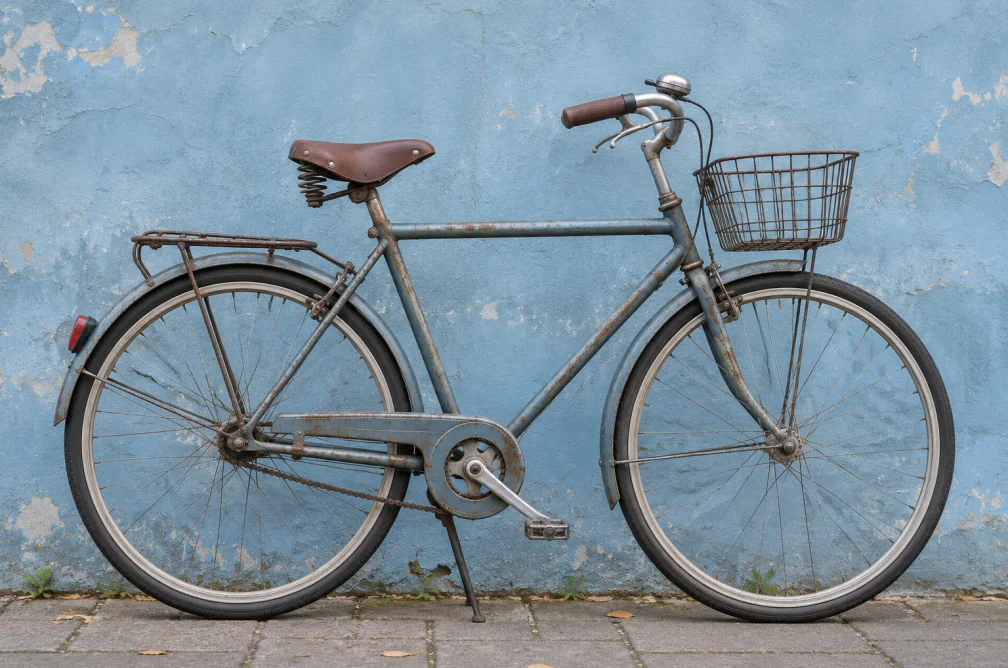 Example
Your result will appear here.
See examplesIdentify the object by location and appearance
Point out exactly which object should disappear and which nearby details must stay. The model reconstructs the area using the rest of the scene as context.
When this helps
Removing a cup from a desk is easier to review when you know what should remain, such as a lamp, a notebook and the wood grain.
Examples
Example
Remove the red cup on the right side of the desk. Keep the notebook, lamp and wood grain.
How to use it
- Upload the full composition.
- Name the object, its position and nearby items to preserve.
- Inspect the repaired patch for repeated patterns and broken lines.
Settings & limits
- Source photo
- JPG, PNG or WebP, up to 10 MB
- Selection
- Describe the object in the prompt
- Output
- Reconstructed area within a new image
Questions about Remove Object from Image
How should I identify the unwanted object?
Use color, location and a nearby landmark. For example, “remove the red cup to the right of the notebook.”
Can it reconstruct a repeated pattern?
It can fill in plausible texture. Check straight lines and repetition at the boundary to catch misalignment.
What if the wrong object was removed?
Add a more specific landmark and explicitly name objects to keep. Use the original upload for another attempt.
What if the object covers part of a pattern?
Name the pattern that should continue and give the model visible examples around the object. Check straight lines, reflections and repeated textures. Try a tighter instruction when nearby items also change.